How to Restrict Your Audience in Meta Ads [2026 Guide]
Meta has significantly reduced how precisely advertisers can target, but there are a few audience restrictions that give you back some of that control. We explain every available restriction method in 2026 and when to use each one.


![How to Restrict Your Audience in Meta Ads [2026 Guide]](https://honest-garden-2954e8e7e9.media.strapiapp.com/restrict_audience_meta_ads_thumbnail_eb7e1ee937.png)
Meta used to give advertisers dozens of ways to narrow who saw their ads.
Most of those controls have now been phased out.
For example, detailed targeting exclusions disappeared in June last year, and the algorithm now treats many control inputs as suggestions rather than hard rules.
However, there are a few audience restrictions you can use to control who sees your ads. And so, today we're explaining every restriction method still available in 2026, and on which occasions to use them.
Key takeaways
- Account-level controls automatically apply to every campaign in your account, including new ones.
- Restricting an audience blocks the algorithm entirely. On the other hand, value rules deprioritize a demographic without cutting them off.
- Custom audience exclusions are only as good as the data behind them. A partial customer list means partial exclusions.
- As Meta removes targeting controls, creative is picking up the slack. What you show people now does more work than who you show it to.
Why restrict audiences in meta ads?
The most common reason for restricting an audience is usually performance-related.
In most cases, Meta optimizes your campaigns based on the objective you chose. But Meta hitting that objective isn't always great news for your business.
For instance, let's assume you are a DTC skincare brand running an ad optimized for link clicks.
Meta will find clicks, and a lot of them. However, if the people clicking through are bargain hunters who bounce the second they see full-price products, those clicks cost you money without producing a good ROAS. Meta sees a successful campaign, while you see a high CPC with no conversions to back it up.
Restricting your audience in that scenario gives the algorithm a tighter pool to work within, one that's more likely to produce the outcomes you care about.
The other reason is legal. Some products cannot be shown to certain audiences based on age or location. That is a compliance requirement, and Meta requires that you enforce it or risk an ad or ad account restriction.
Now that we have that out of the way, which audience restriction options do you still have in Meta Ads Manager?
How can you restrict audiences on Meta ads?
There are five ways to restrict your audience in Meta Ads Manager. Let's go through how each one works.
1. Account-level audience controls
Account controls live inside your Advertising Settings. As such, whatever you configure here applies to every campaign in your ad account, including any new ones created after the fact.
These controls are more like guardrails that keep the algorithm from wandering into territory that doesn't work for your business.
There are four things you can control at this level:
- Limit ad delivery to specific countries or regions
- Set a minimum age for age-restricted products
- Exclude specific audiences for brand protection purposes
- Exclude your own employees from seeing your ads
The tradeoff of restricting audiences on Meta via account controls is flexibility. If you need a restriction that applies only to one campaign or ad set, these won't cut it.
Another thing to note is that location and age restrictions apply across every campaign without exception.
Brand protection and employee exclusions are slightly different, as they don't apply to the Advantage+ app or Advantage+ shopping campaigns, but you can make them more specific for other individual campaigns.
“Account controls give you reassurance that when you choose settings that use AI, such as Advantage+ audience and Advantage+ placements, your ads won’t be shown in a way that isn’t right for your business. Anyone creating a new campaign in your ad account will find your settings applied automatically.” — Meta.
Setting up audience controls on Meta
- Go to Meta Ads Manager and choose advertising settings from the left column.
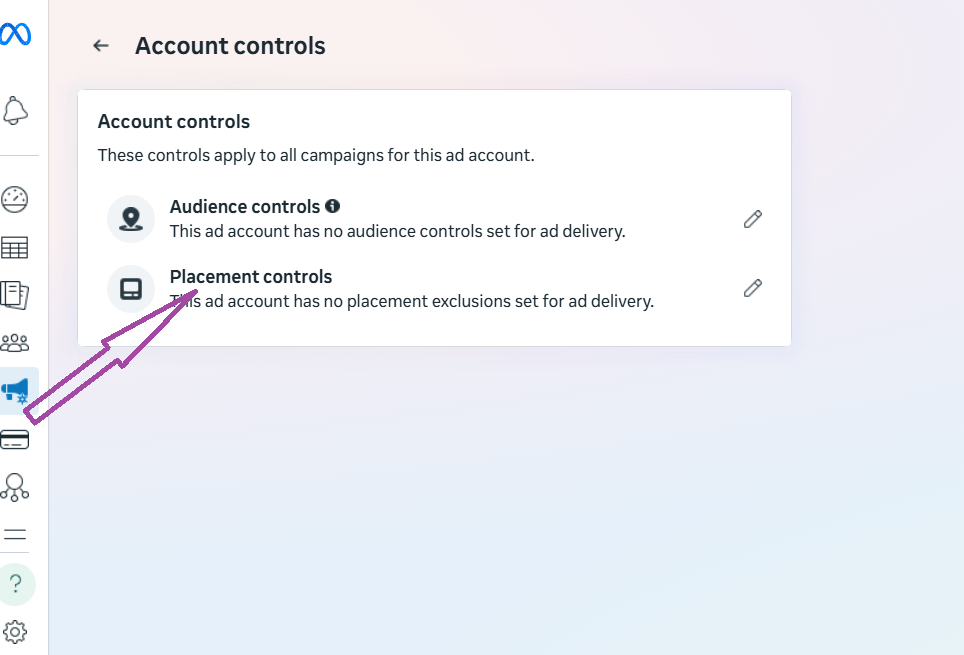
- Next, choose which controls you want to apply and start editing the audience you’d like to exclude.
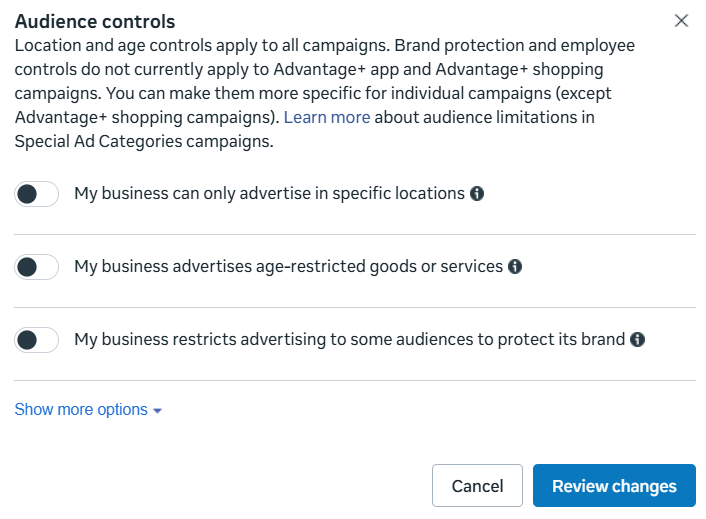
A couple of things to note about setting audience controls:
- You can actually add the locations in bulk.
- The minimum age cannot be past 25 years.
- You can exclude people according to their employer, using the workplace information they list on their profile. This relies on the current employer they have entered in their profile details.
For more granular audience control, you’ll have to consider these options below.
2. Restrict audience by gender
Gender restriction is available at the ad set level and is one of the more straightforward controls Meta still offers. By default, your ads are shown to all genders. You can narrow that to men or women only.
However, in most cases, limiting delivery to men or women reduces the algorithm's ability to find profitable conversions.
Meta's delivery system often identifies high-intent users outside the demographic that an advertiser expects.
For example, a skincare campaign may convert well because men are purchasing a woman’s product as a gift, and a fitness supplement brand might see excellent performance among women even if the product was originally marketed to men.
Restricting gender blocks those outcomes.
However, here are a few cases where you should restrict audiences by gender.
- If the product is unambiguously gender-specific, limiting delivery is reasonable. A brand selling menstrual care products or a women's magazine has little reason to serve ads to men.
- It also makes sense when your campaign objective is engagement, video views, or link clicks, and the performance data shows that one gender consistently produces low-quality traffic. Restricting that gender protects your Meta ad budget without much downside.
3. Restrict audience by age
By default, Meta serves your ads to users aged 18-65+, though you can narrow that range to whatever fits your campaign.
However, the same caution that applies to gender applies here. Tightening your age range too early limits the algorithm's ability to find converting users across the full spectrum.
Meta's delivery system will often find high-intent buyers in age groups an advertiser wouldn't expect.
A premium home goods brand might assume its buyer is 35 to 55, only to find substantial conversion data coming from 28-year-olds furnishing their first apartment. Restricting age prematurely would have cut that audience, even though it's likely to be profitable.
When does it make sense to restrict audiences based on age?
- If your product is age-restricted by law, you should definitely use age restrictions. Supplements with age requirements, alcohol-adjacent products, or anything with a legal minimum threshold should have an age floor set from the start.
- It also makes sense when performance data shows a specific age band consuming budget without converting. As an example, if 18 to 24-year-olds are clicking through your ads but never purchasing, and that pattern holds over enough spend, restricting that range protects your budget without a huge ad revenue loss.
4. Custom audience exclusions
Custom audience exclusions allow you to block a specific group of people from seeing your ads. Unlike account-level controls, these are applied at the ad set level, and you can tailor them per campaign.
The most common use case for ecommerce brands is excluding existing customers from acquisition campaigns.
If someone has already purchased from you, serving them a Discover Us ad is a waste of your ad spend. You can also use custom audience exclusions to exclude repeat purchasers from a first-time buyer promotion, or suppress low-LTV customers from a high-ticket product campaign.
You can build these exclusions from three main sources.
- A customer list you upload directly
- Website visitors tracked via the Meta Pixel code
- Or people who have engaged with your content.
For the best results, it's better to layer your custom sources to ensure you're covering all bases.
5. Restrict audience via value rules
Not every Facebook ads targeting tactic calls for a permanent audience restriction.
If you want to deprioritize a demographic without cutting them out altogether, value rules give you that middle ground.
Value rules typically apply a bid multiplier to specific audience segments.
As such, if you lower the bid for a particular group, it doesn't stop Meta from reaching them; it just makes it less likely unless their performance justifies the spend. In other words, the algorithm can still convert them if the data supports it.
Restrictions block the algorithm. Value rules steer it.
When to use restrictions
A hard audience restriction is best used when your campaign optimizes for engagement, video views, or link clicks rather than purchases.
In those cases, the algorithm has less conversion data to self-correct with, so deprioritizing isn't enough. You need a restriction boundary.
The same applies when your product is unambiguously built for one audience, and you have previous campaign data to support that.
When should you use value rules?
If you have a demographic that converts at a lower rate but still converts, a hard restriction throws away revenue that you could gain from that audience. But if you were to use value rules, you would still be able to spend less on that group while keeping the door open.
It's a more surgical option for brands that have enough performance data to know exactly where their budget is leaking.
Improve your targeting and retargeting strategy:
- Meta Ads Targeting Options
- Audience Network in Facebook Ads
- Meta Ads Manager
- Meta Broad Categories
- Product Ads on Meta
- Facebook Dynamic Product Ads
Creative is the new targeting
As Meta pulls back targeting control, the ad creatives you show people matter more than who you show them to.
The restrictions covered in this guide may be a good start to controlling your targeting, but they can't handle all the targeting work. Some of that effort will fall on your creative.
Because of that, your brand will have to invest heavily in creatives that speak to your target audience at a single glance. The images, ad copy, and headlines should all make it clear who you're targeting.
But coming up with creatives that do that requires a lot of testing, and a lot of testing means a lot of ad creatives. For ecommerce and DTC brands, that can mean hundreds of creatives at a time.
The best thing about being an advertiser today is that you have powerful creative automation tools at your disposal.
If you want one that can produce hundreds of on-brand, compelling ads, we recommend Cropink. It works with your product feed and templates, and there's also a Figma plugin if you prefer to build your templates from scratch.
FAQs
Audience restriction refers to the controls that determine who can and cannot see your Meta ads.
You can control your audience with account-level controls such as location and age restrictions, and set-level controls like gender and custom audience exclusions, or value rules that deprioritize certain demographics without blocking them.
Yes, you can use custom audience exclusions to block specific groups from seeing your ads at the ad set level. You can build these exclusions from an uploaded customer list, website visitors tracked via the Meta Pixel, or people who have engaged with your content.
Detailed targeting is treated as a suggestion by Meta. The algorithm can expand beyond it if it predicts better performance elsewhere. Audience controls, on the other hand, are hard rules. Meta will do better to ensure they’re not serving ads outside the parameters you set.
Damaris is a Digital Marketing Specialist who writes about digital marketing and performance marketing. At Cropink, she creates data-driven content to help businesses run better ad campaigns for better performance and ROI.
Leszek is the Digital Growth Manager at Feedink & Cropink, specializing in organic growth for eCommerce and SaaS companies. His background includes roles at Poland's largest accommodation portal and FT1000 companies, with his work featured in Forbes, Inc., Business Insider, Fast Company, Entrepreneur, BBC, and TechRepublic.
Related Articles

How Can Cropink Help?
Start with Cropink is easy and free
No credit card required