Facebook Dynamic Product Ads: A Complete Guide for 2026
Facebook Dynamic Product Ads personalize product promotions using browsing behavior and catalog data. Brands report 400–800% ROI, with studies showing 34% higher CTR and 38% lower CPA. This guide explains setup, retargeting strategy, product feed optimization and best practices to scale ecommerce campaigns.


Facebook Dynamic Product Ads let Meta match products from your catalog to people who viewed, added, or bought those items on your site. Set up correctly, they run across Facebook, Instagram, Messenger, and the Audience Network, automatically updating as your inventory and prices change.
This guide explains how DPAs work, what you need before launch, how to set them up step by step, and what stronger DPA creatives look like in practice. It also clarifies the naming confusion around DPAs, dynamic ads, and dynamic creatives, three terms that often get mixed up.
Key takeaways
- You need three things before DPA retargeting works reliably: a clean product catalog, event tracking that sends matching product IDs, and a campaign structure built around the right audience stage.
- The most common setup failure is an ID mismatch between your feed and the events your Pixel fires, not a problem with targeting or budget.
- Strong DPA performance usually comes from better feed quality and better creative treatment, not from automation alone.
- Most DPAs look plain because the feed does all the visual work.
- Adding prices, discount badges, ratings, and brand elements to the creative is what separates high-converting catalog ads from ones that get scrolled past.
What Are Facebook Dynamic Product Ads?
Facebook Dynamic Product Ads (also called Meta dynamic ads, Facebook DPAs, or catalog ads) are feed-based ads that automatically show each viewer the products most relevant to their behavior.
When someone views a product on your site, adds it to their cart, or buys from a related category, Meta uses that signal to decide which product from your catalog to show them next and in which format.
A quick naming note: The terms "Facebook DPA," "Meta dynamic product ads," and "catalog-based retargeting ads" all refer to the same ad type. "Dynamic creative" and "DCO" (dynamic creative optimization) are different tools; they test combinations of assets like headlines, images, and CTAs inside a standard ad, rather than pulling products from a feed. More on that distinction below.
Why Use Facebook DPAs?
There are a few concrete reasons why DPAs have become the default retargeting format for ecommerce brands of all sizes.
- Faster catalog coverage. Instead of building individual ads for hundreds or thousands of products, one DPA campaign covers the entire catalog.
- Relevant retargeting. A shopper who viewed a specific jacket sees that jacket in their feed, not a random product from your store.
- Automatic updates. Price changes, stock levels, and new products reflect in your ads as soon as the feed updates, no manual editing.
- Broader reach from a single setup. The same campaign structure can run retargeting, upsell, and prospecting audiences simultaneously using product sets.
Studies show that DPAs can deliver up to a 34% higher click-through rate and a 38% lower cost per acquisition compared to standard catalog ads, but those results depend on a clean feed and a creative that earns the click.
Facebook DPA vs. Meta Dynamic Ads vs. Dynamic Creative
This distinction trips up a lot of advertisers, and the naming doesn't help. Here's a simple breakdown of what each term actually means.
| Term | What it actually is |
|---|---|
| Facebook Dynamic Product Ads / Facebook DPAs | Feed-based ads that pull individual products from your catalog and match them to shopper behavior |
| Meta dynamic ads | Usually the same thing as DPAs, used interchangeably in Meta's documentation |
| Dynamic creative | A Meta ad feature that automatically tests different combinations of assets (images, headlines, CTAs) within a single ad. Not feed-dependent. |
| DCO (Dynamic Creative Optimization) | The broader category that dynamic creative falls under. Often confused with DPAs because both involve "dynamic" elements. |
The practical takeaway: if you want to retarget shoppers with specific products from your catalog, you want DPAs. If you want to test which headline or image performs best for a single campaign, you want dynamic creative.
What You Need Before You Launch
Most DPA issues trace back to setup problems, not targeting or budget. Before building your campaign, confirm you have these four things in place:
- A clean product feed. Your feed should include accurate titles, prices, availability, and images for every product. Titles matter more than most advertisers realize. Meta uses them to match products to queries and audiences. Keep them descriptive and specific. If you're new to this, our guide to product feeds covers the full structure.
- A catalog in Meta Commerce Manager. Upload your feed to Meta Commerce Manager and create a catalog. This is what your DPA campaign will pull products from.
- Event tracking with matching product IDs. Your Pixel (or Conversions API) must fire ViewContent, AddToCart, and Purchase events, and the content_id in those events must exactly match the product IDs in your feed. This is the most common failure point. If the IDs don't match, Meta cannot reliably retarget the right products.
- Defined product sets. Rather than pointing your campaign at your entire catalog, create product sets based on category, margin, price tier, or campaign goal. Tighter product sets give the algorithm clearer signals and make creative customization easier.
How to Set Up Facebook Dynamic Product Ads: Step by Step
The setup has seven stages. Each one builds on the last, so skipping ahead, especially steps 3 and 4, is where most campaigns run into trouble.
Step 1: Prepare your product feed
Export your catalog in a format Meta accepts (XML, CSV, or TSV). Include at minimum: id, title, description, availability, condition, price, link, image_link, and brand. Check for missing values, duplicate IDs, and broken image URLs before uploading.
Step 2: Create a catalog in Meta Commerce Manager
Go to Meta Commerce Manager, create a new catalog, and upload your feed. Set the feed to update automatically (daily or hourly), so prices and availability stay current.
Step 3: Install the Meta Pixel and verify event matching
Install the Pixel on every page of your site. Then check that ViewContent fires on product pages, AddToCart fires when a product is added, and Purchase fires on the order confirmation page. Use the Meta Pixel Helper or Events Manager to confirm each event is sending the correct content_id.
Remember that your feed item ID, the content_id in your Pixel events, and the product ID in Meta Commerce Manager must all match. If they don't, your retargeting ads will show the wrong products or stop serving entirely.
Step 4: Create product sets
In Commerce Manager, segment your catalog into product sets. Common options: by category (shoes, jackets, accessories), by sale status, by price range, or by margin. You'll use these sets to control which products appear in which campaigns.
Step 5: Build your DPA campaign in Meta Ads Manager
Create a new campaign with the "Catalog Sales" objective. At the ad set level, select your catalog and choose the product set you want to promote. Set your audience, retargeting audiences work best to start (people who viewed products, added to cart, or purchased in the last 7–30 days).
Step 6: Choose your format and preview the ad
Select carousel or single image depending on your catalog and creative approach. Before publishing, use the ad preview tool to check how your products actually look. Most DPAs look like plain product-on-white-background ads at this stage. The next section explains how to change that.
Step 7: Launch and monitor
Track CTR, conversion rate, ROAS, and frequency. In the first two weeks, watch for feed errors in Commerce Manager. Low delivery often points to feed issues or ID mismatch rather than audience problems.
Facebook DPA Examples and Best-Performing Formats
The format you choose shapes what information you can show and how shoppers experience the ad.
Here are four patterns that tend to perform well, along with what makes each one work.
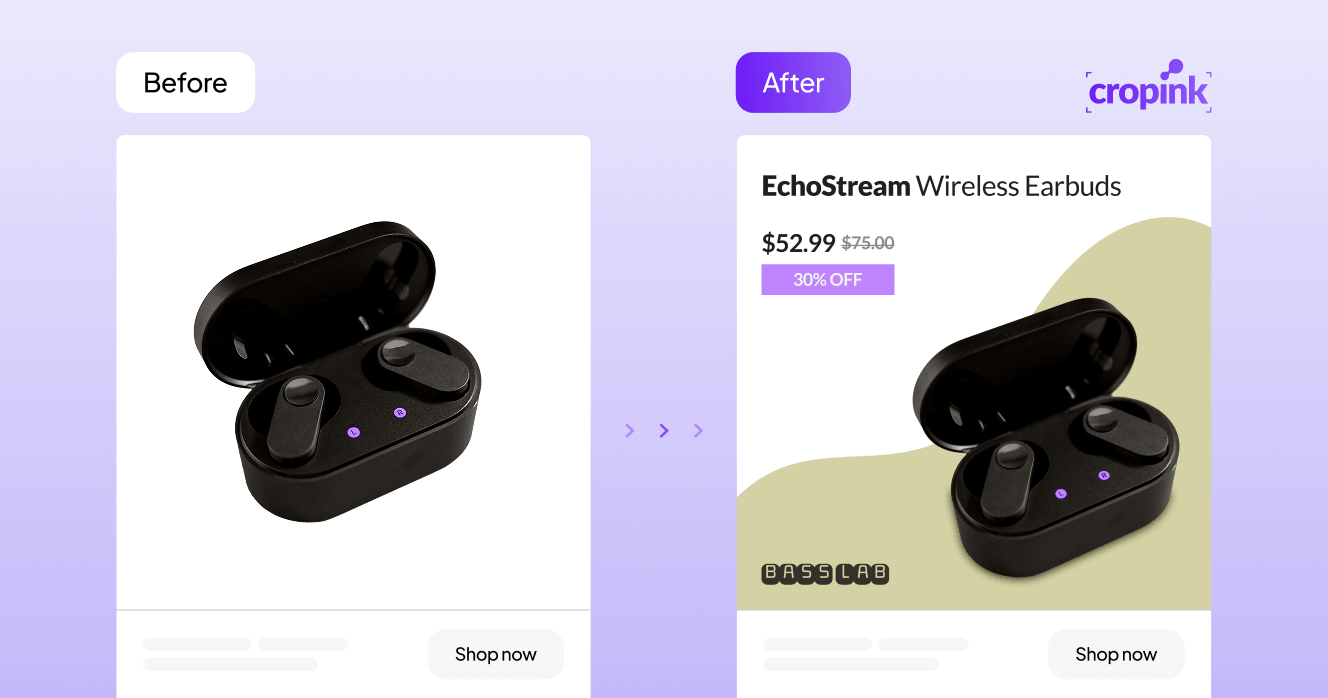
Sale-led carousel
Best for: Discount campaigns, seasonal promos, and end-of-season clearance.
What to include: Old price, sale price, discount badge (e.g., "-30%"), and a short urgency line in the primary text. Each card in the carousel shows a different product from the sale product set.
Why it works: Shoppers scanning their feed can immediately see the value without clicking. The price comparison does a lot of the selling before they reach your site.
New arrivals grid
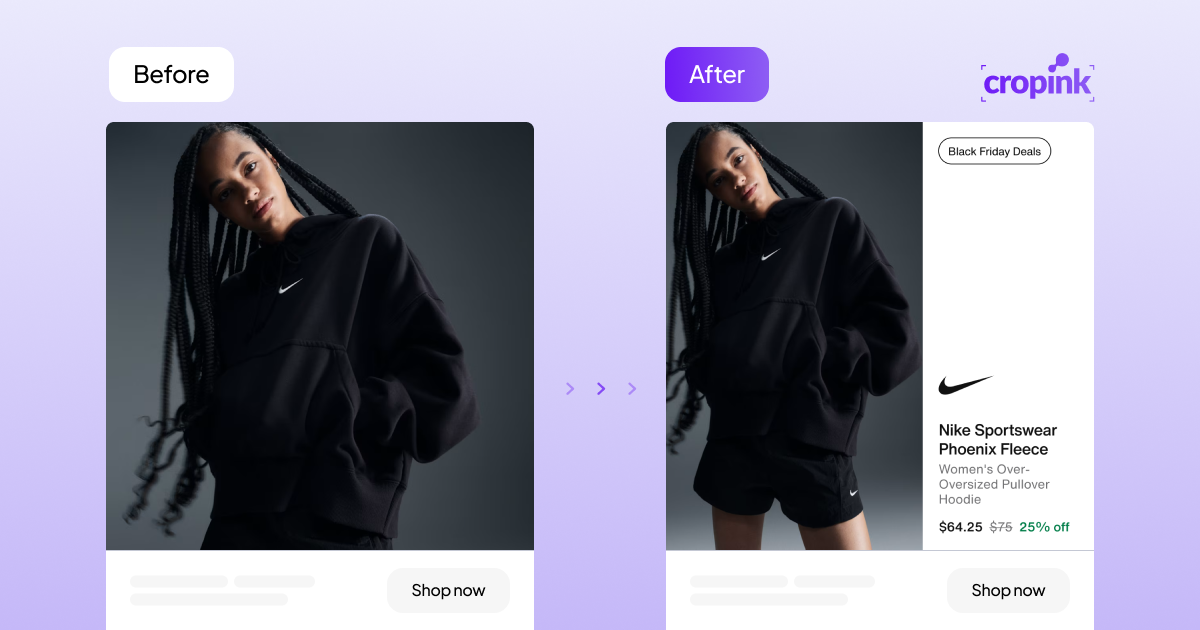
Best for: Fashion, beauty, and lifestyle brands launching a new collection.
What to include: "New Arrival" or "New Collection" badge, product name, clean product image, brand logo in the corner.
Why it works: Positions the ad as editorial rather than promotional. Works well with prospecting audiences who haven't visited the site yet.
Retargeting format with trust signals
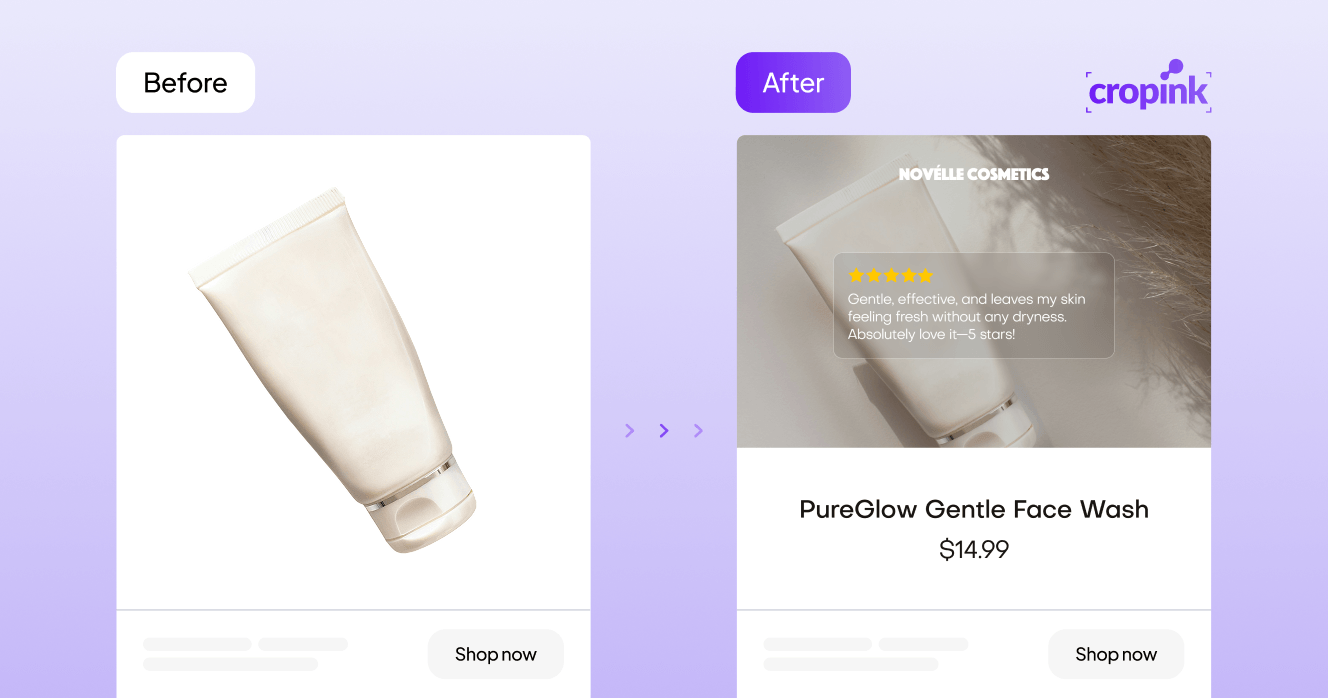
Best for: Shoppers who viewed a product or added it to their cart but didn't buy.
What to include: The specific product they viewed, star rating and review count, price, and a delivery cue ("Free Returns" or "Ships Tomorrow").
Why it works: Addresses the two most common reasons someone doesn't complete a purchase, uncertainty about quality, and hesitation about commitment. Showing the product they already looked at, with proof that others liked it and risk removed, is a much stronger prompt than a generic retargeting ad.
Branded catalog format
Best for: Brands running DPAs alongside other paid social and wanting a consistent visual identity.
What to include: Brand logo, brand color background or border, product image, product name, and price.
Why it works: Facebook's own research found that unbranded ads often generate attention that benefits competitors. A consistent branded frame across every catalog ad builds recognition over time, even when the shopper doesn't click.

Best Practices for Facebook DPAs
A technically correct DPA setup gets you into the auction. What you do with the creative, the feed, and the audience logic determines whether you win it.
Here are the best practices you need to take note of:
Keep your feed titles clean and specific
Vague titles like "Blue Shirt" or "Product 1234" make it harder for Meta to match products accurately and harder for shoppers to understand the ad. Write titles the way a customer would search: "Men's Slim-Fit Oxford Shirt- Navy Blue" gives both the algorithm and the shopper more to work with.
Write primary text that adds what the image can't show
The product tile handles the visual. Your primary text should add context that the image can't carry: shipping thresholds ("Free delivery over $50"), return policy ("30-day free returns"), bundle logic ("Buy 2, save 15%"), or seasonal framing ("Last chance before the sale ends"). Repeating what's already visible in the ad wastes the space.
Use product sets to control what appears where
A full-catalog campaign shown to every audience is rarely the right approach. Retargeting audiences should see the products they already viewed. Prospecting audiences should see your best-performing or highest-margin items. New arrivals deserve their own product set so they don't get buried by older inventory.
Exclude recent buyers
Set an exclusion window for people who purchased in the last 7–14 days. Retargeting someone with a product they just bought damages trust and wastes spend.
Enrich plain product images with feed-driven elements
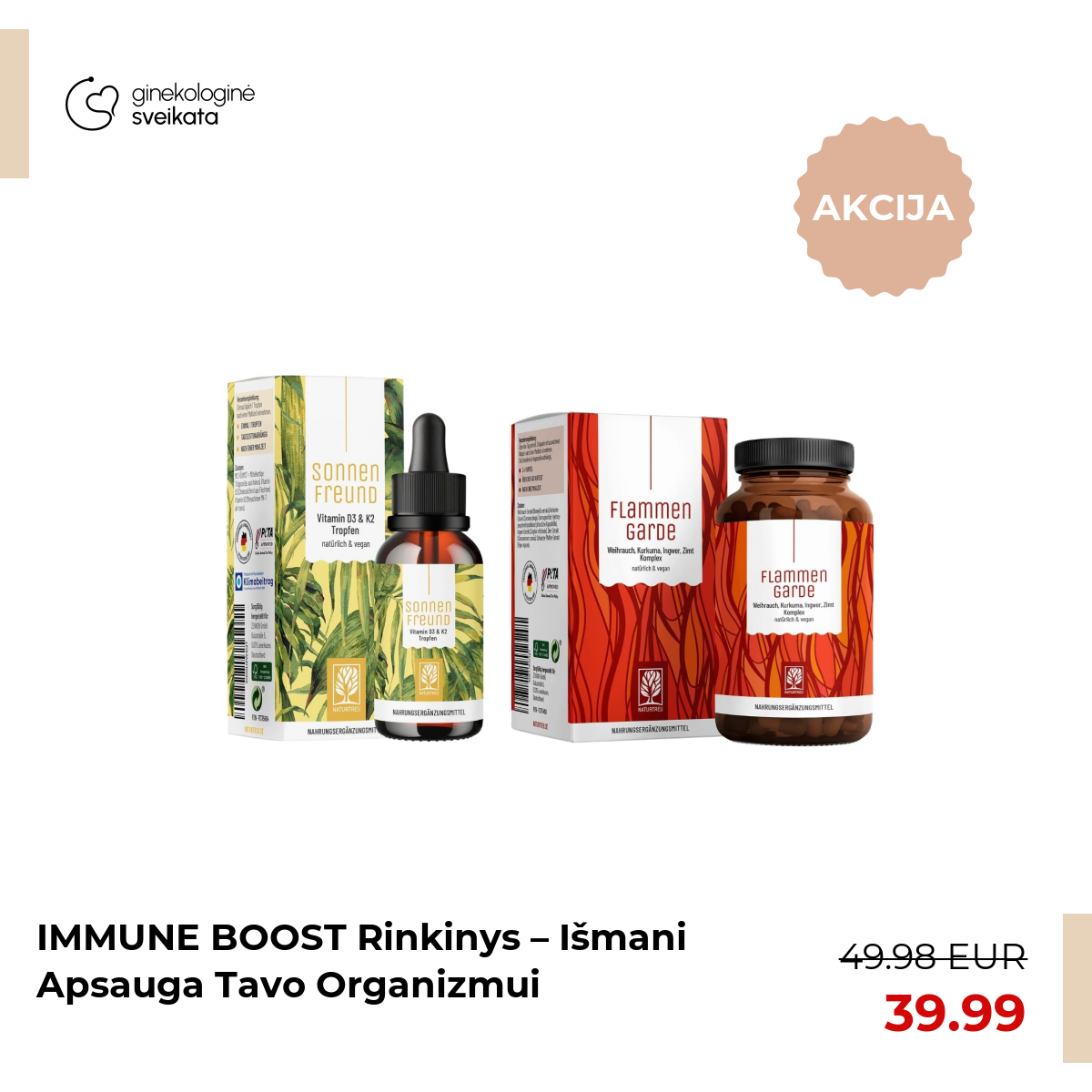
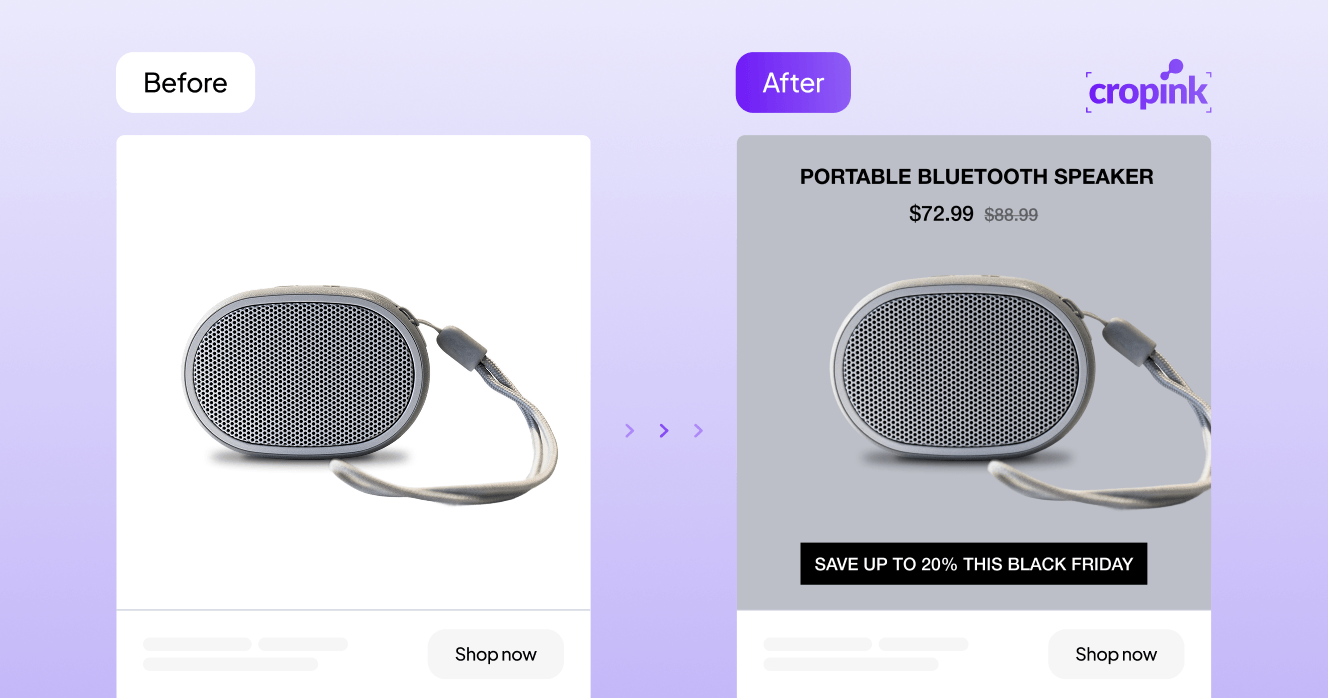
Most DPAs launch with the raw product image from the feed, often a white-background packshot. That looks identical to every other catalog ad in the feed. Adding a price overlay, discount badge, review score, delivery cue, or branded frame directly to the creative gives the shopper more reasons to stop and click.
A working DPA setup is only half the job. As Cropink's team puts it: "If the ad still looks like a raw product feed, performance usually stalls before the algorithm has much to optimize."
Cropink helps you add feed-driven elements, price, discount badge, old price, rating, shipping cue, and brand styling to your catalog ads automatically, without building each creative by hand.
Do's and Don'ts for Facebook Dynamic Product Ads
- Check ID consistency across your feed and Pixel events
- Create separate product sets for sale items, new arrivals, and bestsellers
- Exclude recent buyers from retargeting audiences
- Add price, discount badge, and brand elements to the creative
- Refresh seasonal creative for major sales events
- Monitor Commerce Manager for feed errors after launch
- Assume your DPAs are retargeting correctly if you haven't verified ID matching
- Point every campaign at your full catalog, regardless of audience or goal
- Show the same ad to someone who already purchased
- Run plain white-background product images with no visual treatment
- Use the same template across every product category all year
- Diagnose delivery problems only through Ads Manager
Making DPA Creatives Less Generic
Most DPAs fail for a straightforward reason: the setup is technically correct, but the ads still look like raw feed exports. One white-background product image after another, with no price visible, no brand, no reason to stop scrolling.
Feed-based elements you can add directly to your DPA creatives:
- Price and promotional price- shoppers shouldn't have to click to find out what a product costs
- Strikethrough original price + discount percentage- makes the value of a sale immediately clear
- Star rating and review count- social proof before the click, not after
- Urgency badge- "Only 3 Left", "Selling Fast", or "Limited Edition" when stock or timing warrants it
- Delivery cue- "Free Returns" or "Ships in 24h" removes common objections
- Brand logo and color- build recognition across every product in the catalog
- Seasonal badge- "Black Friday Deal", "Holiday Gift Idea", "Summer Sale" makes the ad feel timely
Cropink lets you apply all of these to your entire catalog automatically, pulling values directly from your product feed. Prices update when your feed updates. Discount badges appear when a sale price is set. No manual editing per product. See the full list of kSee the full list of customization ideas and how each one affects performance. and how each one affects performance.
Start enriching your catalog ads with Cropink →
When to Use DPAs vs. Dynamic Creative
Both tools live inside Meta Ads Manager, and both involve some form of automation, which is why they get confused. The difference is in what they automate.
If you want to test which headline, image, or CTA combination performs best for a single campaign or audience, use dynamic creative.
The two tools can work alongside each other. You might run DPAs for retargeting (showing specific viewed products) while running dynamic creatives for prospecting (testing which messaging angle resonates with cold audiences).
Why Your Facebook DPA Campaign Might Not Be Working
DPA problems usually fall into one of four categories. Here's where to look first.
- Low delivery or wrong products showing: Check for ID mismatch between your feed and Pixel events first. Open Events Manager and confirm that ViewContent events are sending a content_id that matches your catalog product IDs. This is the most common cause of poor DPA performance.
- High spend, low conversions: Usually points to a creative problem or a product set that's too broad. Try narrowing the product set to your highest-margin or best-reviewed items, and enrich the creative with price and social proof.
- Ads running but ROAS declining over time: Check frequency. If the same people are seeing the same ad repeatedly, performance will erode. Refresh the creative, tighten the exclusion windows, or expand to a broader retargeting window.
- Feed errors in Commerce Manager: Resolve these before diagnosing audience or bidding issues. Common causes: missing required fields, broken image URLs, price format errors, and duplicate product IDs.
Wrapping Up
Getting DPAs running is a technical task. Getting them to perform is a creative one.
Start by making sure your feed is clean, your Pixel events are sending the right IDs, and your product sets are structured around audience intent rather than your full catalog. Then look at what your ads actually look like in the feed. If they're plain product images with no price, no brand, and no reason to stop, that's the problem to solve next.
Prices, discount badges, ratings, delivery cues, and brand elements are the levers. Tools like Cropink apply them across your entire catalog without manual work per product.
FAQs
What is the difference between Facebook Dynamic Product Ads and dynamic creative?
Facebook DPAs pull products from your catalog and match them to individual shoppers based on their behavior. Dynamic creative tests different combinations of text, images, and CTAs within a standard ad setup. They serve different purposes and can be used alongside each other.
What do I need before I can run Facebook DPAs?
A product feed, a catalog in Meta Commerce Manager, Pixel, or Conversions API events that send matching product IDs, and a campaign using the Catalog Sales objective.
Why are my Facebook DPAs showing the wrong products?
The most common cause is an ID mismatch between your product feed and the content_id sent by your Pixel events. Check Events Manager to verify that the IDs align exactly.
What is the best format for Facebook DPAs?
It depends on your goal. Carousel works well for sale campaigns and product discovery. Single-image works for strong hero products or branded retargeting. The format matters less than the quality of the creative and the relevance of the product set. See our Facebook DPA design guide for format-specific design tips.
Can I use Facebook DPAs for prospecting, not just retargeting?
Yes. DPAs are most effective in retargeting, but catalog-based prospecting can work when your feed is clean, your product sets focus on top performers, and your creative adds enough context to justify a click from someone who hasn't seen your brand before.
How do I make my Facebook DPAs look less generic?
Start with better product images and cleaner feed titles. Then add feed-driven creative elements: prices, discount badges, ratings, delivery cues, and a branded frame. Cropink automates this across your entire catalog without manual editing per product.
Sources
- Statista. Facebook Statistics & Facts
- SaveMyLeads. What is The Average ROI on Facebook Ads
- Facebook. The Value of Performance Branding
- Cropink. How to Customize Your Facebook Dynamic Product Ads
Manisha is a Data-Driven Marketing Expert who turns numbers into narratives and ad clicks into conversions. With a passion for performance marketing and a sharp eye for analytics, she helps brands cut through the noise and maximize their impact in the digital space.
Leszek is the Digital Growth Manager at Feedink & Cropink, specializing in organic growth for eCommerce and SaaS companies. His background includes roles at Poland's largest accommodation portal and FT1000 companies, with his work featured in Forbes, Inc., Business Insider, Fast Company, Entrepreneur, BBC, and TechRepublic.
Related Articles


How Can Cropink Help?
Start with Cropink is easy and free
No credit card required