5 Meta Automated Rules to Set Up in 2026
Managing multiple Meta campaigns without automated rules means you're always reacting too late, missing underperformers until they've wasted your budget, and manually monitoring metrics that Meta could be watching for you. This article walks you through how automated rules can help you avoid all the above and the exact rules you should set up first.



If you want to stay on top of your Meta ads without being glued to a screen all day, you need to master automated rules in Meta Ads Manager.
These rules let Meta evaluate your campaigns based on parameters you define, then notify you or take action when conditions are met.
You can get those notifications either in your Ad Manager account or in your email.
For example, if an ad isn't getting enough engagement within a set period, you can set a rule for Meta to notify you or pause it automatically, without you having to check in manually.
These rules come in handy when you're managing multiple campaigns and can't afford to let any of them slip.
Read on to learn everything about automated rules on Meta and how to use them to keep your ads profitable.
Key takeaways
- You can have up to 250 automated rules per ad account, counting both active and paused ones.
- A single rule can only contain one of each condition type. If you need two thresholds for the same metric, you need two separate rules.
- Meta retains up to 37 months of data for use in your rules.
- Automated rules cannot be used on ads related to social issues, elections, or politics.
- You can apply a single rule to multiple campaigns or ad sets, but you cannot mix levels in a single rule.
What are automated rules on Meta?
Automated rules are conditions you set in Meta Ads Manager that tell Meta what to do when your campaigns hit certain thresholds.
When you create a rule, you define three things.
- First, the condition that triggers the rule, for example, the cost per result exceeds a certain amount.
- Second, the action Meta takes on the ad, like pausing it or adjusting the Facebook ad budget.
- Third, the campaign, ad set, or specific ad to which the rule applies.
You can stack more than one condition on a single rule. However, keep in mind that all conditions must be met before the rule kicks in.
Conditions you can use
There are quite a few conditions to choose from, and they fall into a few broad categories.
- Cost-based conditions track how efficiently your budget is being spent. These include cost per result, cost per purchase, cost per lead, cost per app install, cost per checkout initiated, and more.
- Delivery conditions look at how your ads are being served. You can set rules based on impressions, reach, frequency, and CPM.
- Budget conditions let you monitor spending. You can trigger rules based on daily budget, lifetime budget, estimated budget spending percentage, or bid amount.
- Time-based conditions are useful for automating actions tied to how long a campaign or ad has been running, using metrics such as hours since creation or active time in seconds.
When setting a condition, you also define how Meta evaluates it using a logical expression.
You can set it to trigger when a value is greater than, smaller than, between, or not between a threshold you define.
Each condition can also be scoped further with additional filter options, such as applying it to a parent object or a different time range than the rest of the rule. This comes in handy when you want one condition in a rule to look at a different window than the others.
When setting your rules, avoid working with data from short time windows. One day is rarely enough to make a call.
Stick to 3 to 7 days, so your rule reacts to a trend rather than a short-term fluctuation.
5 insanely helpful Meta automated rules
You can actually have up to 250 rules on Meta if you want. But that’s probably way more than the average business needs, unless you’re an agency handling multiple clients.
Here are a couple of helpful Facebook ads rules you can implement immediately to ensure you’re always running profitable campaigns on Meta.
| Rule | Conditions | Action |
|---|---|---|
| Stop-loss for high cost per result | Cost per result > $20, min 3 conversions, last 3 to 7 days | Pause ad set |
| Scale winners based on ROAS | ROAS > 3, min 5 purchases, last 7 days | Increase daily budget by 15 to 20% |
| Frequency cap alert | Frequency > 3, impressions > 5,000, last 7 days | Send notification only |
| Budget pacing alert | Estimated spend > 80%, last 3 days | Send notification only |
| Pause during low-activity hours | Current time 12 am to 6 am, impressions > 500 | Turn off the ad set |
1. Stop-loss rule for high cost per result
Goal: Prevent overspending on underperforming ads.
Conditions:
- Cost per result is greater than $20
- Time range: last 3 to 7 days
- Minimum results: at least 3 conversions
Action: Pause ad set
This rule is a good idea when you want to cut off expensive ads. However, you should have a minimum results condition to ensure it doesn’t trigger too early when data is still limited. Such a rule applies best when you’ve already figured out your cost per result.
2. Scale winners based on ROAS
Goal: Increase the Facebook budget on ads that are already performing well.
Conditions:
- Return on ad spend is greater than 3
- Purchases are at least 5
- Time range: last 7 days
Action: Increase daily budget by 15 to 20 percent
This automated rule pushes more ad spend toward performers and is generally a great way to react early to high-performing campaigns. But make sure you’re not increasing budget percentages too much at once.
3. Frequency cap alert
Goal: Stop your ads from wearing out your audience before you notice.
Conditions:
- Frequency is greater than 3
- Impressions are greater than 5,000
- Time range: last 7 days
Action: Send notification only
When the same people keep seeing your ad over and over, performance drops, and you start paying more for less. This rule flags the ad before fatigue sets in, giving you time to rotate ad creatives or adjust your audience targeting before your costs climb.
4. Budget pacing alert
Goal: Catch ad sets that are burning through budget too fast before they overspend.
Conditions:
- Estimated budget spending is greater than 80 percent
- Time range: last 3 days
Action: Send notification only
This rule is useful when you're running campaigns with a fixed budget and can't afford to exceed it. It will give you an early warning so you can step in and adjust manually before the budget runs out.
5. Pause ads during low-activity hours
Goal: Stop spending the budget when your audience is least likely to convert.
Conditions:
- Current time is between 12 am and 6 am
- Impressions are greater than 500
- Time range: last 7 days
Action: Turn off ad set
You’ll also have to create a second rule to turn the ad set back on at 6 am. This way, you're not burning budget overnight when your audience is asleep. This particular Facebook ad rule works best for businesses targeting a specific time zone where off-hours are predictable.
Rule automation limits on Meta ads
Before you start building out your rules, there are a few limits worth knowing so you don't run into surprises later.
- A single rule can only contain one of each condition type. For example, you cannot add two separate Cost per Result conditions within the same rule. If you need multiple thresholds for the same metric, you must create separate rules.
- Each ad account can have up to 250 automated rules. This count includes both active and inactive rules.
- A rule can only be applied to objects at the same hierarchy level: Campaign level, Ad set level, Ad level. You can apply one rule to multiple campaigns, ad sets, or ads. What you cannot do is apply a single rule across mixed levels at the same time. If you want similar automation across campaigns and ad sets, you will need separate rules for each level.
- Meta renamed Reach and Frequency buying to Reservation starting October 2023. Automated rules cannot pause Reservation campaigns. If you are running campaigns under this buying type, you will need to pause them manually rather than rely on rule automation.
- Automated rules cannot be used on ads related to social issues, elections, or politics. Meta requires these ads to be managed directly by verified individuals to support election integrity and accountability. Any edits or adjustments for these categories must be handled manually.
How to create automated rules in Meta Ads Manager
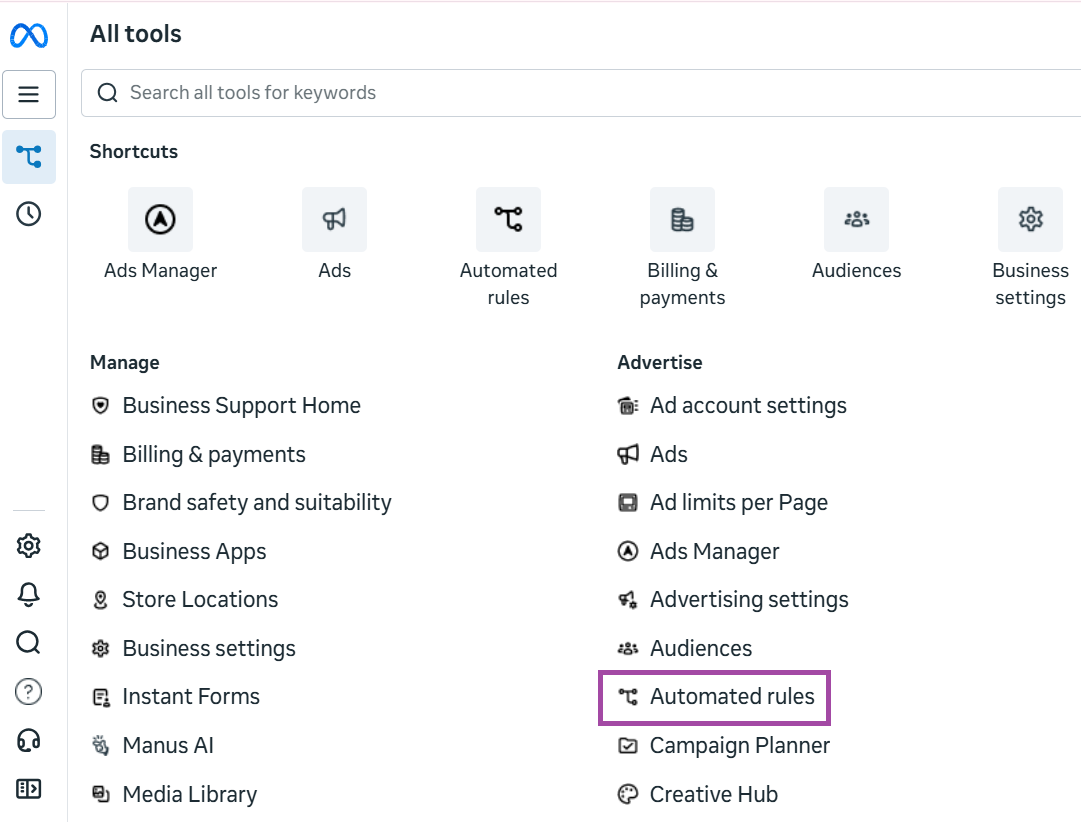
You can access the rules tool directly at > facebook.com/ads/manager/rules, or go to All Tools in Meta Ads Manager and click on Automated Rules.
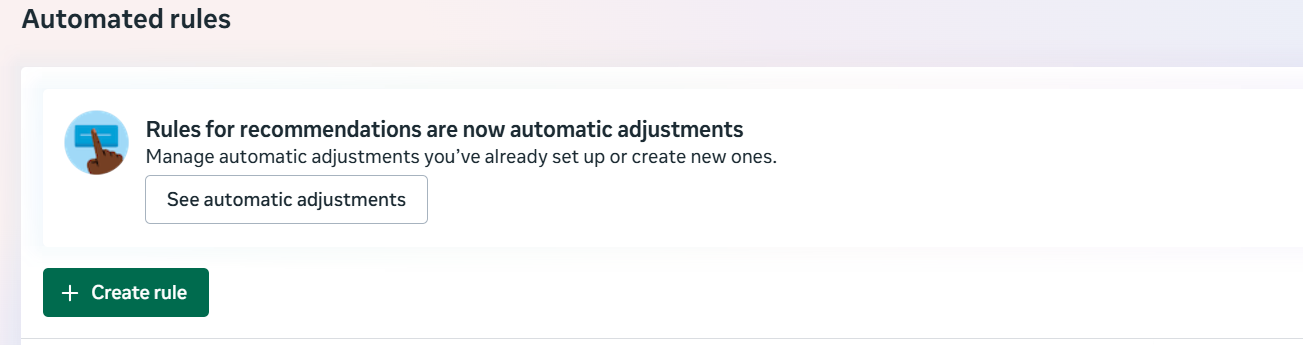
- Click the bright green Create Rule. It opens a tab where you are to set conditions and actions.
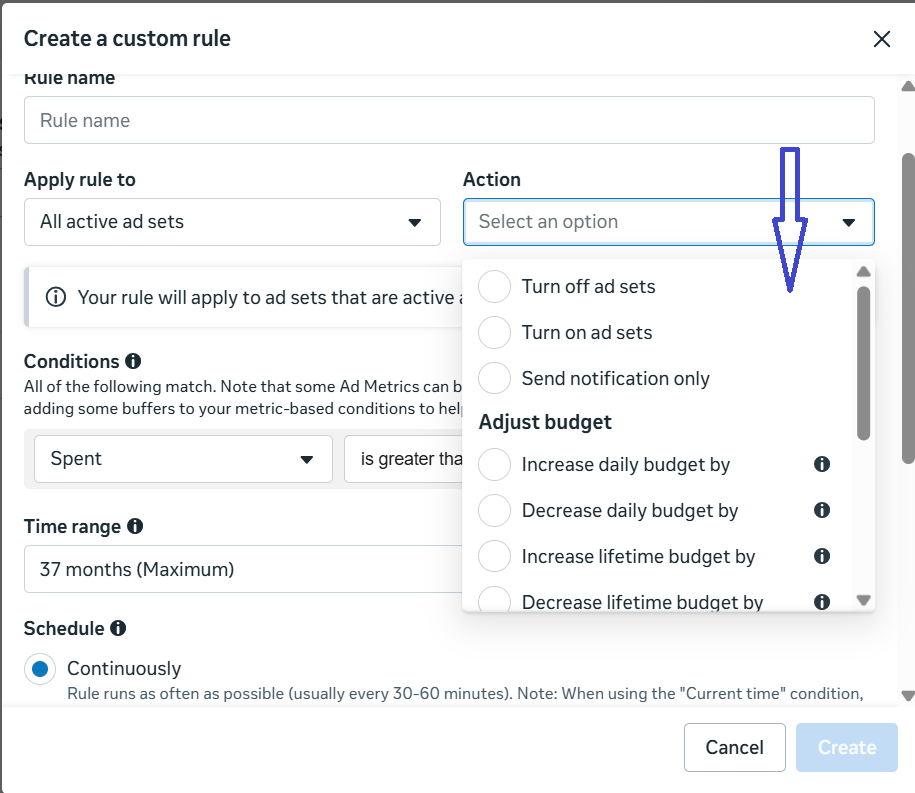
- First, give your rule a name. Make it descriptive enough that you'll know what it does at a glance, especially if you end up building several rules over time.
- Next, choose what the rule applies to. You can apply it to all active campaigns, ad sets, or ads. This is also where you define the action Meta will take when your conditions are met, things like pausing an ad set, turning one on, sending you a notification, or adjusting the budget up or down.
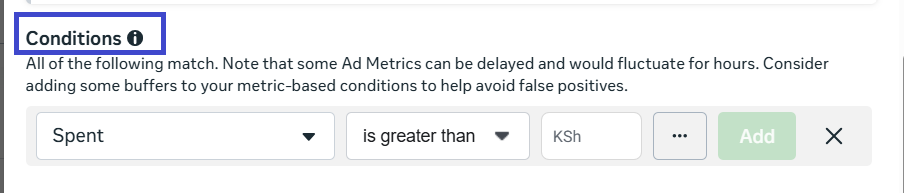
- Then set your conditions. This is where you tell Meta what to look for. You pick the metric, set the logical expression, and enter your threshold value.
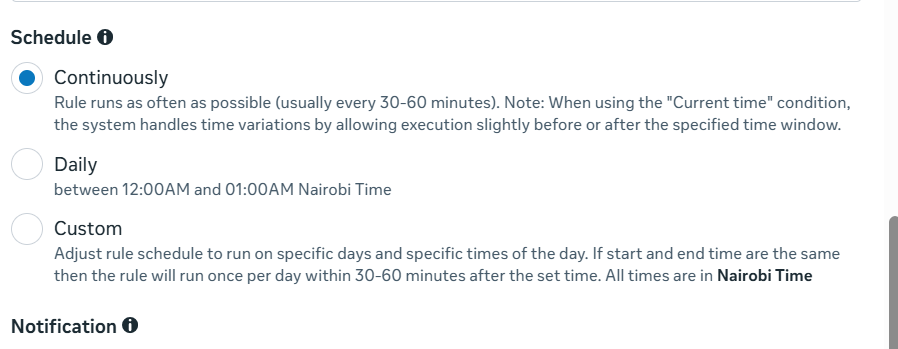
- After that, choose how often you want the rule to run. Continuously means Meta checks every 30 to 60 minutes, while the daily schedule runs between midnight and 1 am in your time zone. You can also set a custom schedule for specific days and times.
- Decide how you want Meta to notify you. You can get alerts inside Ads Manager, by email, or both. Then hit Create, and your rule is live.
Final thoughts
Meta automated rules won't run your ads for you, but they will make sure nothing slips through the cracks while you're focused on optimizing other, more demanding parts of your campaign.
If you're just getting started, don't try to automate everything at once.
Set up rules around your budget, cost per result, and CTR first. Those three cover the ad metrics that hurt the most when they go unnoticed.
Once you're comfortable with how your rules are behaving, you can layer in more automations.
The 250-rule limit is generous, but more rules don't necessarily lead to better results.
A handful of well-thought-out rules will do more for your campaigns than a long list of overlapping ones that trigger at the wrong time.
If you want to pair your Meta ad rules with high-converting creatives, Cropink makes it easy to build and refresh ad creatives without a designer.
FAQs
Automated rules are a feature in Meta Ads Manager that let you set conditions to monitor your campaigns. When those conditions are met, Meta either takes an action or sends you a notification.
Meta can retain up to 37 months of data for use in your automated rules.
No, a single rule can only apply to one level at a time, whether that's campaigns, ad sets, or ads. If you want the same automation across different levels, you'll need to create a separate rule for each one.
Not all campaigns are eligible. Automated rules cannot be used on ads related to social issues, elections, or politics, and they cannot pause Reservation campaigns.
Sources
Damaris is a Digital Marketing Specialist who writes about digital marketing and performance marketing. At Cropink, she creates data-driven content to help businesses run better ad campaigns for better performance and ROI.
Leszek is the Digital Growth Manager at Feedink & Cropink, specializing in organic growth for eCommerce and SaaS companies. His background includes roles at Poland's largest accommodation portal and FT1000 companies, with his work featured in Forbes, Inc., Business Insider, Fast Company, Entrepreneur, BBC, and TechRepublic.
Related Articles


How Can Cropink Help?
Start with Cropink is easy and free
No credit card required